

How to allow login on Konica Minolta embedded devices when the PDServer is unavailable
The embedded app on Konica Minolta is configured with a primary and, optionally, a secondary PDServer address. When a user tries to log in at the device, it must successfully connect to either the primary or secondary servers. If both connection attempts fail, the user will not be able to log in to the printer.
Konica Minolta printers that support function version 4.2 and greater, have a Cache Function. When enabled, it will store the users’ login details for a specified period of time (30 days by default). If the PDServer is inaccessible, the printer will go into Server Down mode. When in Server Down mode, any user that has logged in within the previous 30 days will still be able to make copies or scans. They won’t be able to release jobs printed from their computer, but they can print from a flash drive plugged directly into the printer. All transactions made while in Server Down mode will be automatically uploaded once the PDServer is available.
There are some functionality limitations when in Server Down mode that may require the Cache Function to be disabled. These are discussed below.
Third-party account billing is not supported
Account billing is not supported in Server Down mode. This has implications for law practices that need to assign billing codes to transactions. Any transactions made while in Server Down mode will be billed to the users’ auto-bill account.
User credit limits cannot be enforced
If you have users that have auto-bill accounts with an enforced minimum balance (e.g. student printing environments), their balance cannot be checked when in Server Down mode. Instead, when a printer goes into Server Down mode, it will allocate the user a balance which is set in the printer settings. This will only affect users whose credit limits are actually enforced. So if the user only has 1.00 balance in their account, and the Server Down balance for that printer is set to 50.00, the user could print up to 50.00 on that printer. When the server is available, their account will be debited for all transactions and their balance could be negative. If there is more than one printer with Cache Function enabled, the user could print up to 50.00 on each printer.
This does not affect users that do not have credit limits. The login info that is cached on the device includes whether they have a limit or not, but doesn’t record the actual balance. If they don’t have a limit (e.g. staff members) then they can print as much as they want to.
Rule enforcement is limited
Any device function that was limited the last time a user logged in is recorded in the printer’s cache of user login information. This means that if a user had reached their monthly colour quota when they logged in on the 30th of the month, they wouldn’t be able to print colour if they tried to log in on the 1st of the month when the printer is in Server Down mode.
Similarly, if the user had almost reached their colour quota when they last logged in, it means the colour function would not be limited in the cache of their login information. So in Server Down mode, the user would be able to print in colour, potentially exceeding their colour quota.
Enable the Cache Function
If limitations of allowing the Server Down mode are not a concern, then we can proceed to enable the Cache Function of the printer:
- In Resource Manager, navigate to Print Management > Konica Minolta Integrated.
- In the right-hand pane, double click the printer.
- Click the Initialisation tab.
- Click the Advanced settings button.
- Click the Server Down tab.
- Tick the Cache user info to allow login when server is down checkbox.
- See the Server down configuration options and make your selections.
- Click Close.
- Click Gather Info, then Initialise.
- Once the process is complete, click OK + Refresh All.
Server Down configuration options
These settings govern how long cached info is kept, and how much limited users are able to print.
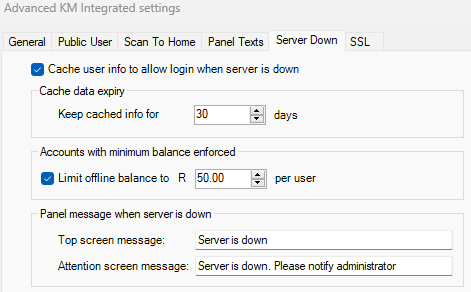
Cache data expiry
This sets the number of days that user login information will be cached. So any user that tries to log in while in Server Down mode will only succeed if they logged in previously within the number of days specified.
Accounts with minimum balance enforced
If the Limit offline balance to checkbox is ticked, it means that any user that logs in who has a credit limit enforced will be allocated that balance specified in the text box. For example, a user named John Smith is a student with an enforced minimum balance of 0.00. When this user logs in while the device is in Server Down mode, they will be able to make prints and copies up to a total of 50.00 no matter what their actual account balance is. Another user named Jane Doe is a staff member that doesn’t have a minimum balance enforced. Jane will not be limited when making prints and copies while the device is in Server Down mode.
Panel message when server is down
The messages are shown on the printer panel. The Top screen message will be displayed on the login panel in the top right:

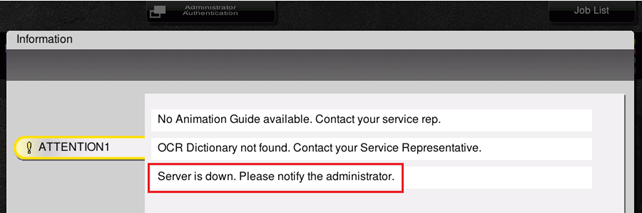
The Attention screen message will be displayed when the user touches the exclamation icon:

Then the attention messages will be displayed:
|
Document revision date: 2023/10/04 |
