

PRINT DIRECTOR | AUTOMATED QUEUE DEPLOYMENT
Every workstation gets the right printers, without a desk visit
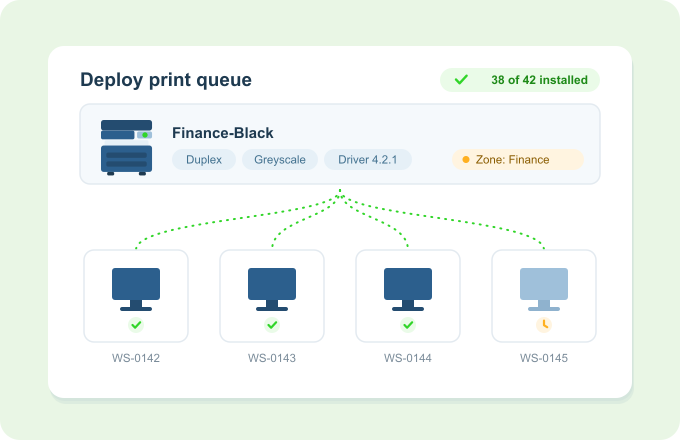
Define a print queue once, choose who should have it, and Print Director installs it on the right computers automatically, driver and printing preferences included. Change a setting centrally and it pushes out to everyone.
One place to manage every printer on every PC.
Rollouts happen from a chair, not on foot.
The problem
Shared printers and Group Policy stopped being the easy answer
- Point and Print is locked down now. Since Microsoft hardened it against PrintNightmare, a standard user cannot install a driver from a print server without administrator rights. The usual workaround is a registry change that reopens the hole Microsoft closed, which is not a decision most IT teams want to make twice.
- Group Policy does not reach Entra ID joined machines, and those machines cannot see print server printers either. In a mixed Active Directory and Entra estate you end up running two ways of doing the same job, and neither covers everyone.
- Settings drift, and stay drifted. One user switches their default to single-sided colour, and Group Policy has no way to put it back.
- New starter, new laptop, reimaged machine: someone still has to visit and add the right printers by hand.
- A driver update means touching every computer that has that queue, and moving someone to another building means their printers don’t follow them.
Automated Queue Deployment turns all of that into a rule you set once.
How it works
Set it once, it installs itself
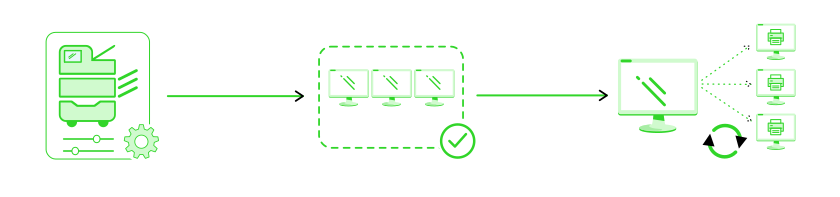
- Copy an existing queue
Point Print Director at a working print queue and it captures the driver, printer settings and user printing preferences, ready to reuse. - Choose who gets it
Target computers by department, user login, IP range, hostname, or specific machines, using deployment zones. Include or exclude, whichever is simpler. - Deploy and keep in sync
Matching computers install the queue on their own. Change the driver or a default, like duplex, centrally and the update pushes to every linked machine on its next refresh.
Key Benefits
Why IT teams switch to Automated Queue Deployment
- Zero desk visits
New and reimaged machines pick up the right printers by themselves, wherever the user sits. - Standards that stickEnforce defaults like duplex or greyscale, and re-apply them automatically when a user changes them. Group Policy cannot do this: once the user edits their preferences, that is final.
- One driver update, everywhere
Update the driver once and every linked workstation follows, with no rollout project. - Printers that follow people
Base deployment on department or login, so a user’s printers travel with them across sites. - Ready for where Microsoft is headingQueues can be deployed on IPP ports, which work with Windows Protected Print, the driverless model Microsoft is moving the Windows print stack towards.
Works with what you already have
Built for the Windows fleet you already run
- Installs through the PDAgent already on your Windows workstations, using Standard TCP/IP print queuesor IPP print queues. IPP ports support Windows Protected Print.
- Queues can hold jobs at the server across a TLS-encrypted connection. An SMB shared queue does not work this way.
- Target by deployment zone: department, user login, IP range, hostname or named machines, include or exclude.
- Pairs with Secure Print Release and department cost tracking. The same queue you deploy can hold jobs for secure release and record who printed what.