

PRINT DIRECTOR | CLOUD WORKFLOWS
Scan and print to the cloud, right from the printer
Your documents live in OneDrive, SharePoint, Google Drive, Dropbox or Box. Print Director puts them one tap away on your Konica Minolta and Lexmark panels. Link your account once on your phone, then use any printer on the network.
Link your cloud account once on your phone,
then scan and print at any Print Director printer
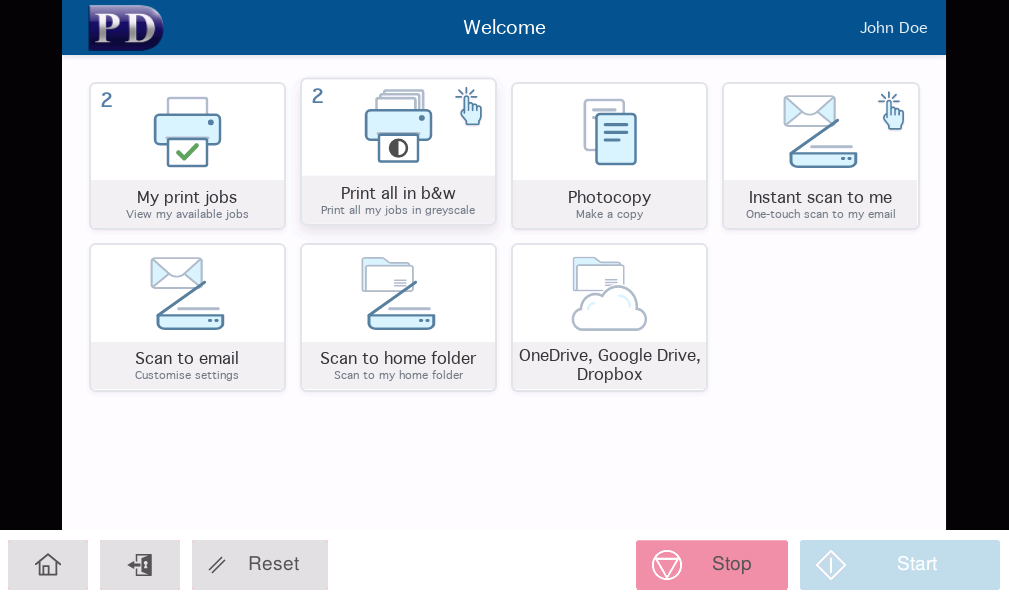
The problem
Your team moved to the cloud. Your printers did not.
- Scanning into the right cloud folder means “scan to email, then save the attachment”.
- Printing a file from OneDrive or Google Drive means finding a laptop first.
- Network scan folders break the moment someone changes a password.
- Many print management products store each user’s cloud sign-in on the printer, so users sign in again at every device.
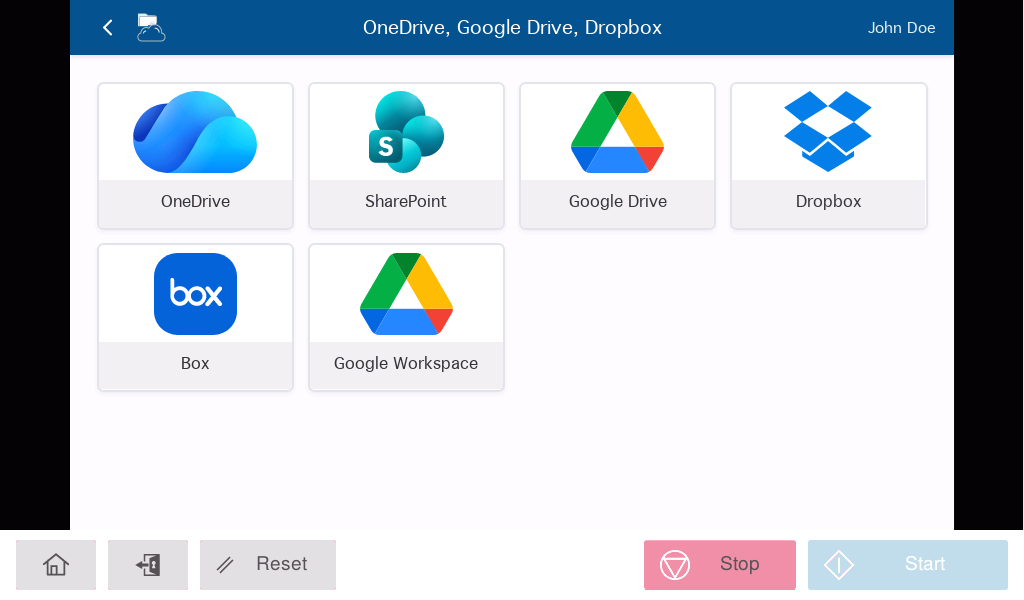
Cloud Workflows close that gap. Tap a tile and your scans go straight to the cloud, or your cloud documents print straight from the panel.
How it works
Sign in once. Use any printer.
1
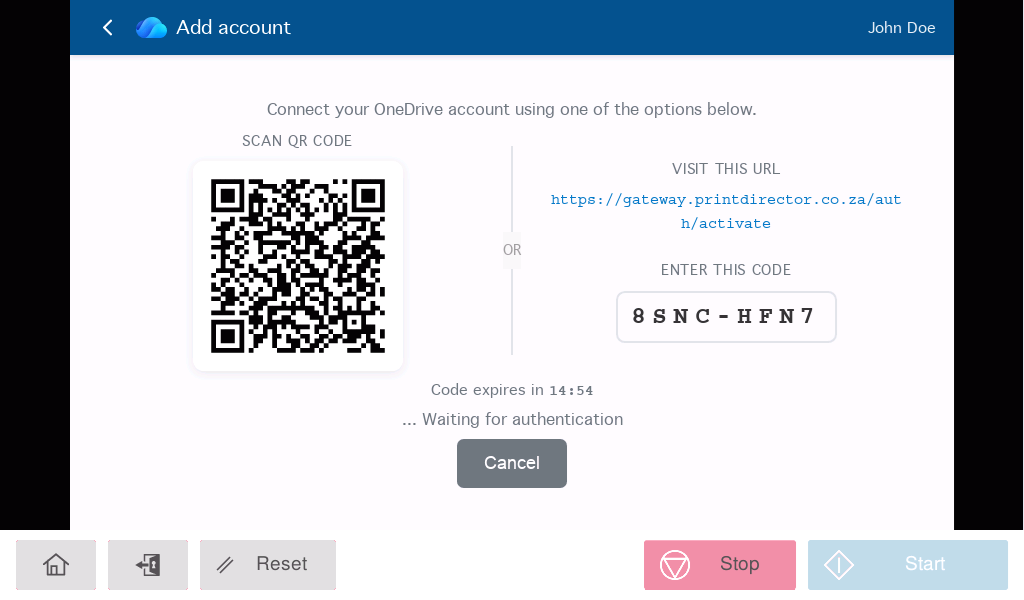
Tap a cloud tileThe first time, the printer panel shows a QR code.
2
Sign in on your phoneScan the code and sign in to Microsoft, Google, Dropbox or Box with your own MFA.
3
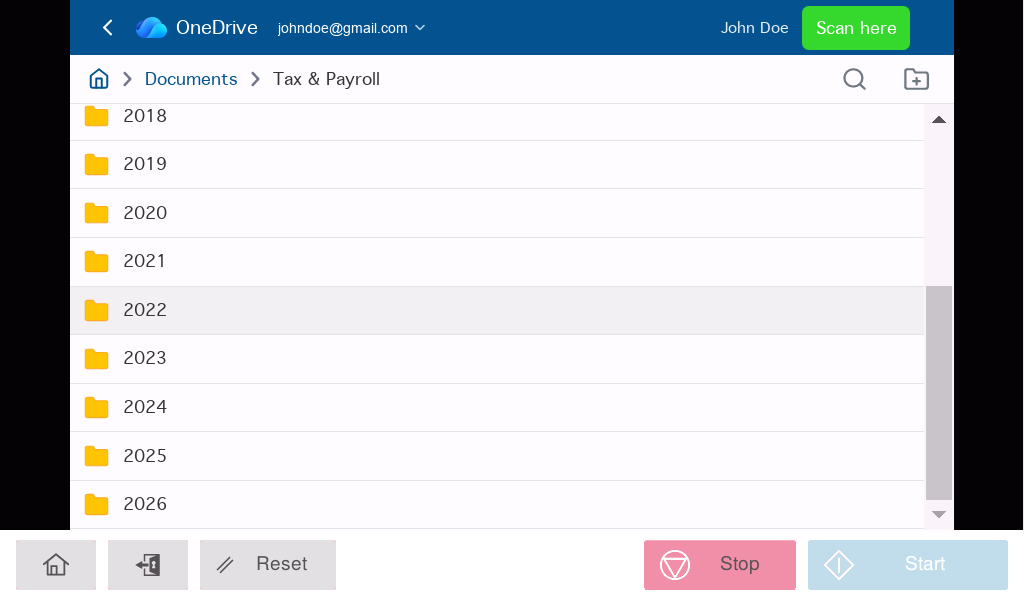
Scan or printPick the folder or file and press Start or Print. Your account then follows you to every printer.
Scan to the cloud
Straight into the right folder
- All the major providers: Microsoft OneDrive and SharePoint, Google Drive, Dropbox and Box, plus a Google Workspace workflow.
- One-touch destinations: administrators can set a folder per workflow, such as each user’s own dated folder. Staff tap, scan and walk away.
- Locked or open: lock the destination to one folder, or let users browse.
- Your usual scan settings: multi-page, duplex, colour or mono, saved as PDF, TIFF or JPEG.
- More than one account: link a personal and a work OneDrive and choose at scan time.
Print from the cloud
No laptop needed
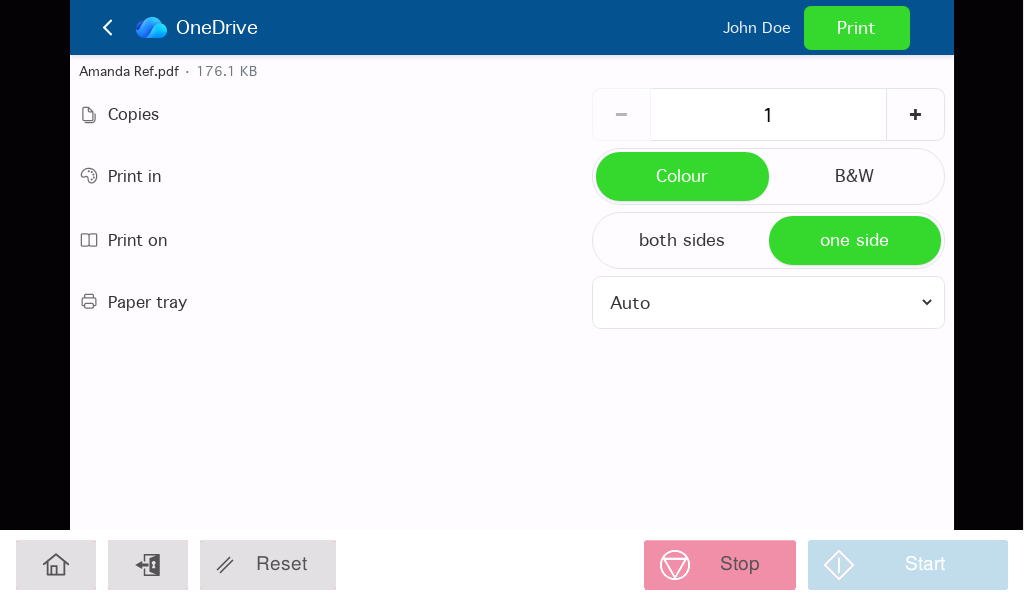
- Word, Excel, PowerPoint and PDF files print directly. Office files are converted to PDF automatically using the cloud provider’s own conversion service.
- Images print too. JPEG and PNG files print straight from the panel.
- Smart duplex. Print Director picks long-edge or short-edge binding to suit portrait or landscape pages.
- Live progress. The panel shows each stage, from downloading to printing.
Where your sign-ins live
On your server, not ours
This is the part that matters to your IT team and your auditor. Print Director uses a small sign-in gateway for the QR code hand-off, but that gateway never sees your documents and never keeps your sign-ins.
- Stored on your own Print Director server. Once a user signs in, the sign-in token is passed to your server over a secure connection and the gateway forgets it.
- Encrypted at rest. Each user’s cloud sign-in is stored encrypted in your Print Director database, not on a printer and not in a shared cloud vault.
- Files go direct. Scans travel from your server straight to the cloud provider, and prints come straight back. No document passes through Blue Swift’s systems.
- Outbound connections only. No inbound firewall changes. If your users can already reach Microsoft 365 or Google, you are ready.
Security at a glance
How Print Director compares
| Print Director Cloud Workflows | Typical cloud-hosted print management | |
|---|---|---|
| Where sign-in tokens are stored | On your own server, encrypted | On the vendor’s cloud servers |
| Where scanned files travel | Direct from your server to the cloud provider | Often through the vendor’s cloud |
| Inbound firewall changes | None | Sometimes required |
| Using more than one printer | Sign in once, use any printer | Often sign in again per device |
| How users sign in | QR code, on their own phone | Often typed on the printer keyboard |
| MFA and Conditional Access | Honoured, sign-in happens in the user’s own browser | Varies by vendor |
For your administrator
Set up in the Resource Manager you already use
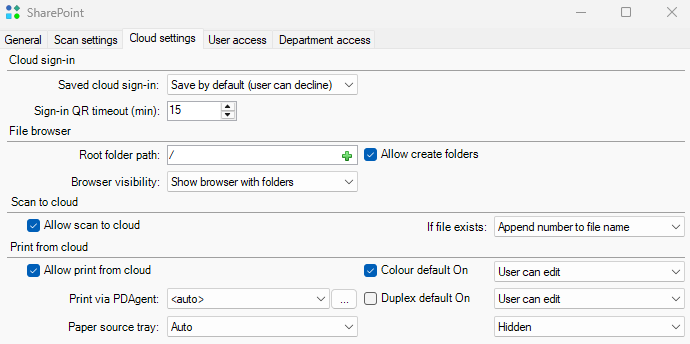
- Choose who sees what: decide which cloud providers appear on which printers, for which users or groups.
- Automatic folders: use the user’s login, department and the date to route every scan to the right place.
- Print defaults per workflow: duplex, colour or mono, and whether users can change them.
- One audit trail: cloud scans and prints go through the same rules, reports and billing as printing and copying, logged against the real user at the printer.
Works with what you already have
No new hardware
- Runs in the Print Director embedded app on Konica Minolta and Lexmark panels.
- Included with a current Annual Software Maintenance plan. Your Print Director partner schedules the upgrade.
- Pairs with Secure Scan-to-Email and Secure Print Release on the same panel.