

PRINT DIRECTOR | SECURE SCAN-TO-EMAIL
Scan-to-email without a password on the printer
Your printer's built-in scan-to-email stores a mailbox password on the device, and Microsoft is switching that method off. Print Director replaces it with the modern sign-in Microsoft 365 uses today, on your Konica Minolta and Lexmark devices.
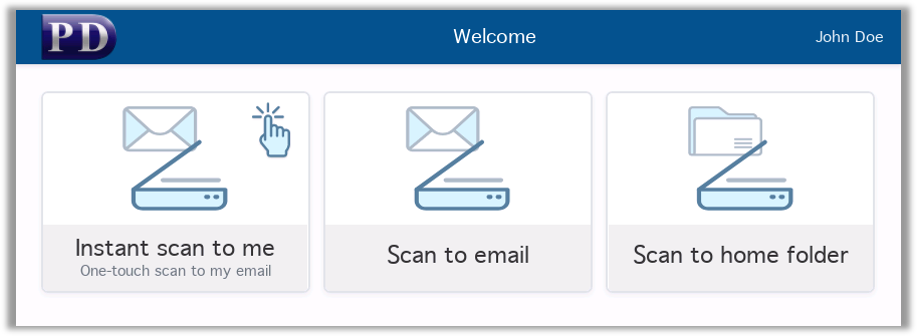
Tap Scan to Email, pick your recipients, press Start.
No mailbox password stored anywhere on the printer
The problem
Your printer is holding a mailbox password
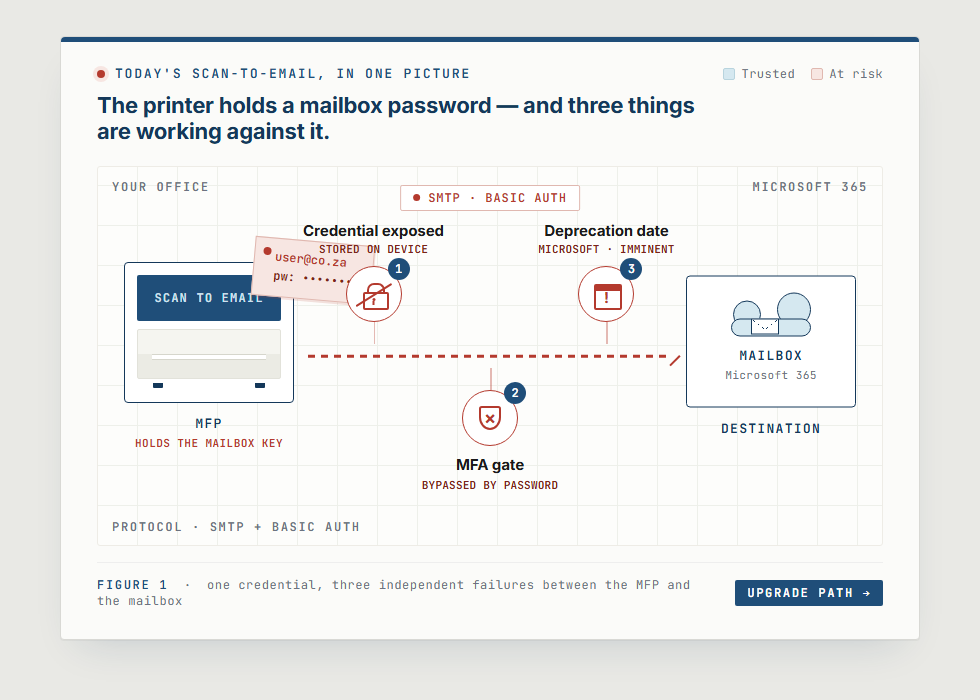
Built-in scan-to-email uses SMTP with Basic Authentication. The printer keeps a mailbox username and password in its settings, and sends them every time it emails a scan.
- The password sits on the device. Anyone who can reach the printer’s admin page may be able to retrieve or misuse it.
- One password can open the whole mailbox. A leaked printer password can let an attacker read email and send as that user.
- It skips Multi-Factor Authentication (MFA). A stored password cannot be protected by MFA, which leaves a gap in your security policy.
- Microsoft is turning it off. When SMTP Basic Authentication goes, built-in scan-to-email stops working, often without warning.
- Auditors and insurers notice. POPIA, GDPR and cyber-insurance policies increasingly expect modern authentication.
Print Director’s Secure Scan-to-Email closes that gap. No password on the printer, MFA respected, and nothing to break when Microsoft switches Basic Authentication off.
How it works
Simpler for users, safer for IT
1
Tap Scan-to-EmailChoose Scan-to-Email on the printer panel.
2
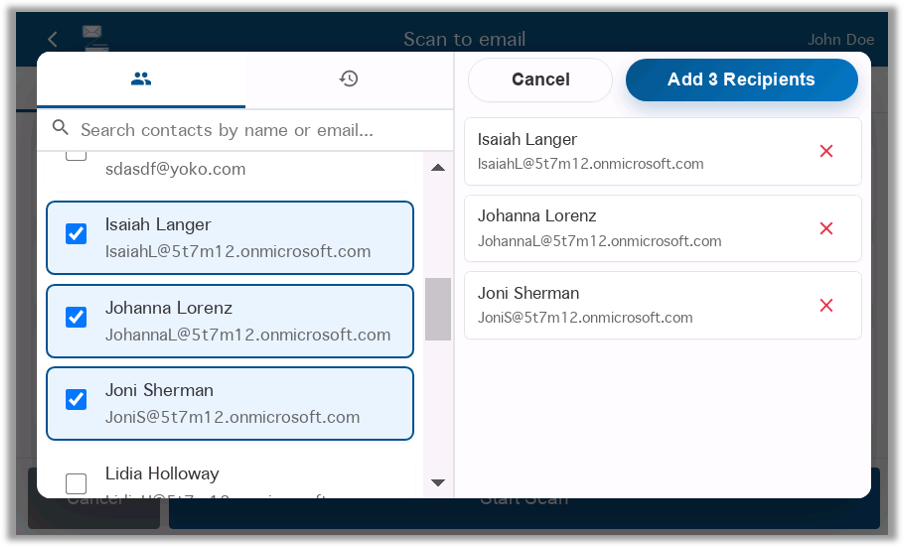
Pick your recipientsChoose from the company address book or recent contacts, or type an address in.
3
Press StartThe scan is emailed to the people you chose, sent securely through Microsoft 365.
How it's different
Modern sign-in, not stored passwords
- No passwords on the printer. Print Director connects to Microsoft 365 with OAuth 2.0 and Microsoft Graph. Only encrypted tokens are kept, on your Print Director server, and they can be revoked at any time.
- One secure sender, a full audit trail. Scans are sent from one designated mailbox, but every scan is still logged against the real user signed in at the printer.
- Your Microsoft 365 rules apply. MFA, Conditional Access and sign-in policies apply when the sending account is set up and whenever its access is renewed.
- Visible and removable. Print Director appears in your Entra ID Enterprise Applications. Remove it, or delete its secret, and sending stops immediately, without touching a printer.
- Ready for the shutdown. When Microsoft retires SMTP Basic Authentication, Print Director customers are already on the new standard.
Two setup options
Choose the setup that suits your site
| User-delegated sign-in | Private app in your own tenant | |
|---|---|---|
| Setup | An administrator signs in to Microsoft 365 once from Resource Manager | Your IT team registers a private app in Entra ID, limited to one mailbox |
| Renewal | Every 90 days (Microsoft’s limit) | Up to every 2 years (secret rotation) |
| Best for | Pilots, or sites happy to renew every quarter | Recommended for everyday use |
The private app can only send from the one mailbox you allow, and that can be a shared mailbox that doesn’t use a user licence.
For your administrator
Control who can scan, and see every scan
- Full audit trail: who scanned what, when, and to whom.
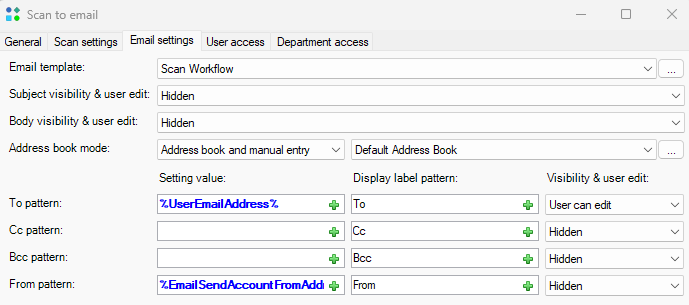
- Access control: limit scan-to-email to users, departments, or Active Directory and Entra ID groups.
- Address books: show everyone, only the user’s department, or a set list of contacts.
- Rules and cost recovery: scans go through the same rules, reports and billing as printing and copying.
Works with what you already have
No new hardware, no per-user licences
- Runs in the Print Director embedded app on Konica Minolta and Lexmark panels.
- Works with Microsoft 365 through OAuth 2.0 and Microsoft Graph.
- Included with a current Annual Software Maintenance plan. Your Print Director partner schedules the upgrade.
- Pairs with Cloud Workflows and Secure Print Release on the same panel.