

HID Omnikey 5427 on HP devices
HID Omnikey 5427 on HP devices
This reader supports most cards including 125khz HID Prox and ISO EM cards as well as 13.5Mhz HID iClass and Mifare cards.
Plug the USB reader into Windows PC
The driver may automatically install when plugged in. If it does not, go to http://www.hidglobal.com/drivers and download the EEM Driver for the OMNIKEY 5×27. Install the driver and then plug the USB reader in again.
Open a web browser to http://192.168.63.99/
If the driver is correctly installed, it will open the OMNIKEY 5427 Reader Management interface.
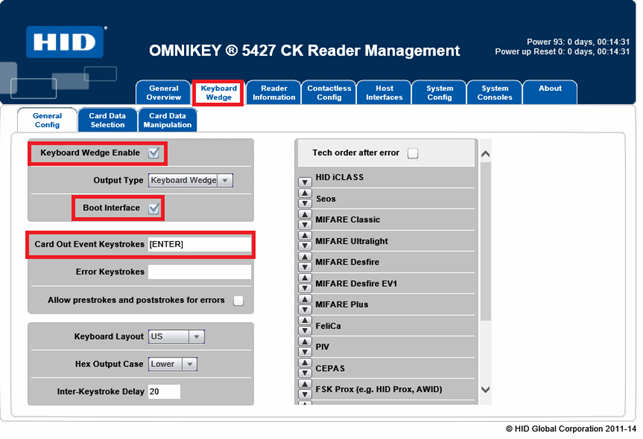
- Click Keyboard Wedge.
- Tick the Keyboard Wedge Enable checkbox.
- Ensure Boot Interface is ticked.
- Ensure the Card Out Event Keystrokes textbox contains [ENTER].
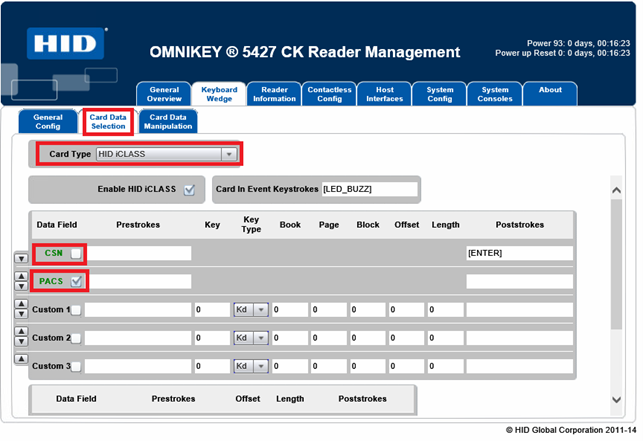
- Click Card Data Selection.
- In the Card Type drop down, select your card type. The settings below may differ depending on which number must be used for authentication at your particular site. The settings below are an example using an HID iClass card. You can see what data will be sent by opening Notepad and then scanning the card. Edit these settings so that the correct data comes through. It must be a Hex string that ends in a carriage return (e.g. 014001c3).
- Untick the CSN checkbox.
- Tick the PACS checkbox.
Apply the changes and test in Notepad
Once the settings have been changed, we can test the output using Notepad.
- Click System Config.
- Click Apply Changes.
- Open Notepad.
- Scan the card. The output should be a hex string followed by a line feed.
Changing the Buzzer and LED settings
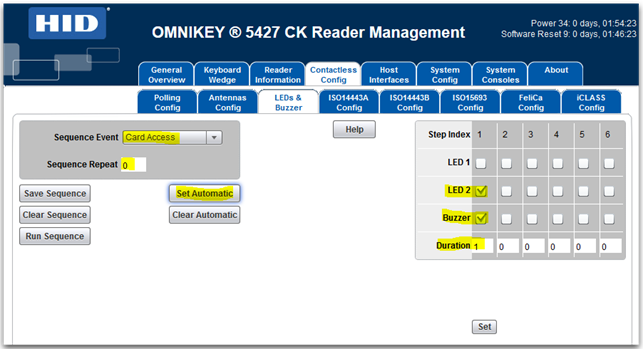
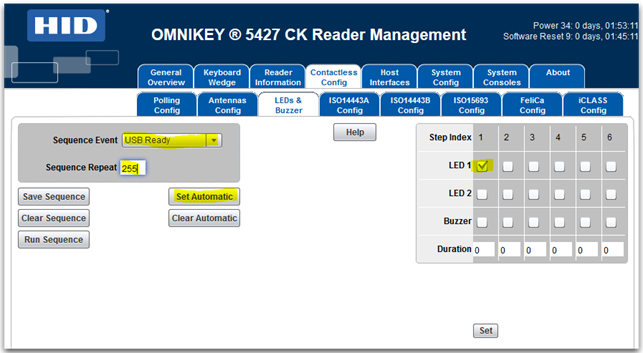
If the factory default buzzer and LED settings are not to the client’s satisfaction, they can be changed in the Reader Management interface.
Under Contactless Config, click LEDs & Buzzer. Edit the settings and test until satisfied.
Below is an example configured for a recent client:
Card Reader Settings in Resource Manager
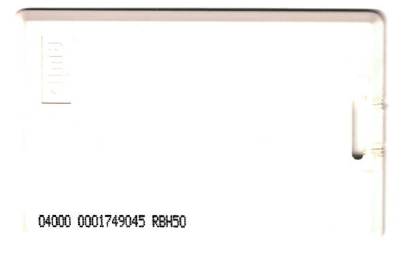
For this example we will be using the card pictured above.
Ensure the reader is now plugged into the device. An error may be displayed on the printer panel stating that the USB device is not supported. This will be cleared once the PD apps have been pushed to the device.
- Open Resource Manager and navigate to Device Management > Shared Devices.
- Double click the HP device.
- On the Controller tab, ensure the Controller Type is set to HP Integrated.
- On the Authentication tab, in the Authentication type frame, ensure the Identification method drop-down is set to either Card swipe or keypad login or Card swipe only.
- Click the Auth Device tab.
- In the USB device registration frame, click the Choose known VID/PID button.
- Choose HID Omnikey 5427CK (keyboard wedge mode) and click OK.
- In the Card reader settings frame:
- Choose whether self-registration of cards will be allowed and the authentication requirements for self-registration.
- As the Omnikey is working in Keyboard Wedge Mode, we must choose either the keyboard wedge codes for hex characters or decimal characters from the Byte conversion method drop-down. By default, the reader outputs hex characters in which case choose Keyboard wedge codes for hex characters. If you want to confirm whether hex or decimal is outputted, plug the reader into a PC and scan a card with Notepad open.
- Data ordering settings are ignored for keyboard wedge readers.
- Now the Start bit and Bit length must be set based on the number you would like to extract from the binary string. For example above, to get the number 1749045 that is printed on this particular card, we would choose Start bit: 24 and Bit length: 31.
| Document revision date: 2020/07/09 Software version: 2.2.65.1 |