

Skip to main content
Elatec OEM RFID Device (Keyboard Wedge) on HP devices
Elatec OEM RFID Device (Keyboard Wedge) on HP devices
Card Reader Settings in Resource Manager
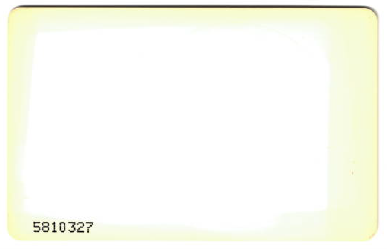
For this example we will be using the card pictured above.
Ensure the reader is now plugged into the device. An error may be displayed on the printer panel stating that the USB device is not supported. This will be cleared once the PD apps have been pushed to the device.
- Open Resource Manager and navigate to Print Management > Shared Devices.
- Double click the HP device.
- On the Controller tab, ensure the Controller Type is set to HP Integrated.
- On the Authentication tab, in the Authentication type frame, ensure the Identification method drop-down is set to either Card swipe or keypad login or Card swipe only.
- Click the Auth Device tab.
- In the USB device registration frame, click the Choose known VID/PID button.
- Choose Elatec OEM RFID Device (Keyboard) and click OK.
- In the Card reader settings frame:
- Choose whether self-registration of cards will be allowed and the authentication requirements for self-registration.
- The Elatec is a keyboard wedge reader, so we must choose either the keyboard wedge codes for hex characters or decimal characters from the Byte conversion method drop-down. By default, the reader outputs decimal characters in which case choose Keyboard wedge codes for decimal characters. If you want to confirm whether hex or decimal is outputted, plug the reader into a PC and scan a card with Notepad open.
- Data ordering settings are ignored.
- Now the Start bit and Bit length must be set based on the number you would like to extract from the binary string. For example, to get the number 5810327 that is printed on this particular card, we would choose Start bit: 8 and Bit length: 32.
| Document revision date: 2020/07/06 Software version: 2.2.65.0 |