

How to integrate Microsoft Universal Print with Print Director
How to integrate Microsoft Universal Print with Print Director
Microsoft Universal Print lets your users print from any device (Windows, macOS, iOS, iPadOS or Android) to a printer share in the cloud, with no print driver, no print queue and no VPN on the device. The Universal Print client is already built into the operating system.
Print Director adds the part Universal Print does not do on its own: secure release, user authentication, accounting and rules. This guide shows how to bridge the two: a job a user submits from a laptop at home is pulled down to your Print Director server and held there by Print Director, ready for release. When the user authenticates at any Print Director-enabled printer, the job appears in their list of waiting jobs and they release it just like any other job.
You need Print Director 2.5.12.1 or later. Version 2.5.12.1 added the ability to read the signed-in user from the Universal Print Connector’s Windows Event Log, which is what lets Print Director attribute Universal Print jobs to the right person on domain-joined and workgroup connector hosts.
Print path: User device > Microsoft Universal Print > connector on the Print Director server > local Windows queue > PDAgent capture and secure release.
How it works
- A user prints to a Universal Print share from their device. The job goes up to Microsoft’s Universal Print cloud.
- The Universal Print Connector, a small Microsoft service installed on your Print Director server, pulls the job down and submits it to a local Windows print queue that Print Director controls. It also writes an entry to its Windows Event Log recording which Entra user submitted the job.
- Print Director captures the job, reads the signed-in user from the connector’s Event Log (this is the 2.5.12.1 feature), attributes the job to the matching Print Director user, and holds it on the Print Director server for secure release, applying your rules, quotas and pricing. The document stays on the server; it is not sent to any printer yet.
- The user walks up to any Print Director-enabled printer, authenticates (card, PIN or login), and the held job appears in their list of waiting jobs. They select it, and Print Director sends it from the server to that printer.
The result is off-network printing with no inbound connection or VPN into your network, and without giving up the secure-release control, reporting, quota and balance enforcement Print Director provides.
Where this fits. This uses Microsoft’s own Universal Print Connector with Print Director 2.5.12.1. It is the right answer when your goal is “users on devices off our LAN must be able to print to our office printers”, and it works even for users who have only an Entra ID account: Print Director reads the signed-in user from the connector log rather than relying on an on-premises Windows account.
Before you begin
You will need all of the following. The integration depends on each one; most setup problems trace back to a missing item here.
An eligible Microsoft 365 / Universal Print licence
Universal Print is included with several Microsoft subscriptions. Eligible base subscriptions include Microsoft 365 Enterprise E3, E5 and F3, Windows Enterprise E3 and E5, Microsoft 365 Business Premium, and the Universal Print standalone add-on. See Microsoft’s get access to Universal Print page for the current list.
Watch the licence type. Universal Print needs an eligible base subscription, not a compliance or audit add-on. For a quick trial, Microsoft 365 Business Premium is the easiest known-good path.
A Print Director server alongside the connector
- Print Director 2.5.12.1 or later: earlier versions cannot read the user from the connector Event Log.
- The Universal Print Connector is installed on the same machine as the Print Director agent that will capture the jobs. Print Director only trusts the connector Event Log for jobs submitted locally, so the connector and the capturing agent must be co-located.
- Domain join and Hybrid AD are not required for the Event Log override method; it supports a workgroup connector host.
- The PDAgent service account must be able to read the connector’s Operational log. LocalSystem can read it; a custom service account needs suitable access, such as membership of Event Log Readers.
- Each user who prints needs a Print Director login name matching the value extracted by the override: either the short name before @, or the full Entra UPN (see step 5).
- Universal Print licences assigned to the users who will print.
- A Microsoft account with the Printer Administrator (or Global Administrator) role, to install and sign in to the connector.
Step-by-step setup
1. Install the Universal Print Connector on the Print Director server
Download and install Microsoft’s Universal Print Connector on the same Windows server that runs Print Director (download link).
2. Sign in to the connector
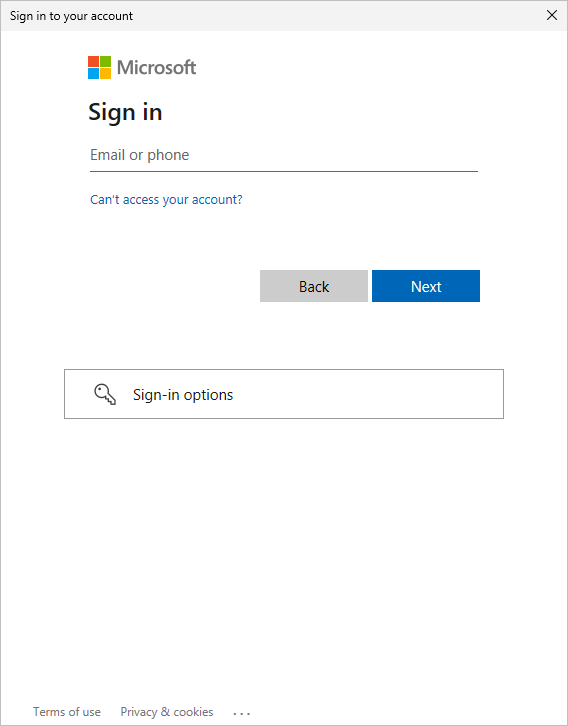
Sign in with an account that has the Printer Administrator or Global Administrator role. Give the connector a recognisable name (for example, your server name) so it is easy to find in the Universal Print portal.
3. Install the seeded PD_Colour queue on the server and register it
Use the standard PD_Colour queue deployment included in the DBTools seed after database creation. Install this deployment on the server that runs the Universal Print Connector and the capturing PDAgent.
Check the deployment
-
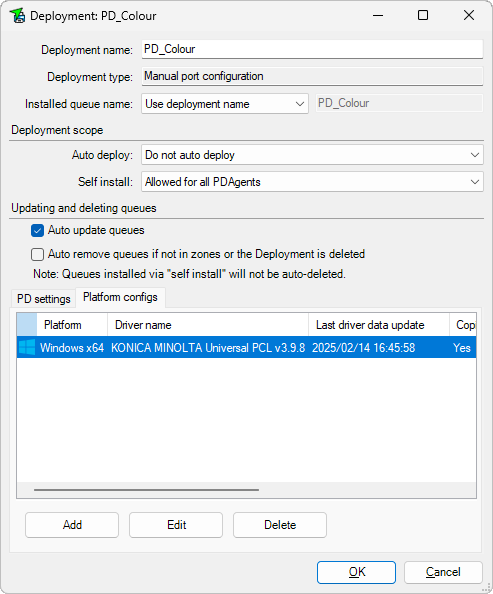
In Resource Manager, open Print Management > Print Queue Management > Queue Deployments and open PD_Colour.
-
Check that the installed queue uses the deployment name and that self-install is allowed for the server’s PDAgent.
-
On Platform configs, open the Windows x64 configuration. The example uses the KONICA MINOLTA Universal PCL v3.9.8 driver. Use a driver suitable for the printers that will release the jobs.
-
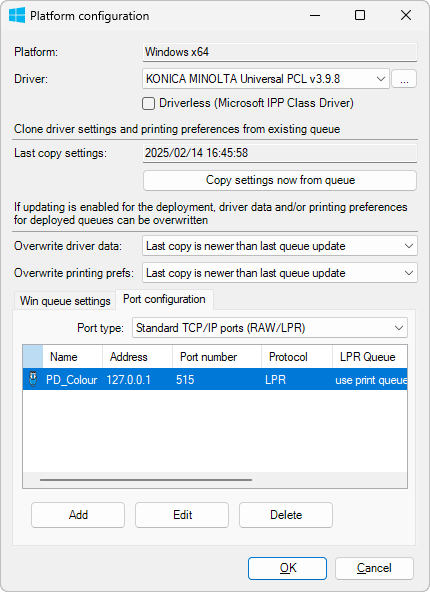
On Port configuration, open the PD_Colour Standard TCP/IP port.
-
Confirm these port settings:
Setting Value Address 127.0.0.1 Protocol LPR Port 515 Set LPR queue to print queue name Checked Effective LPR queue name PD_Colour LPR Byte Counting Enabled (double spool) Unchecked SNMP Status Enabled Unchecked 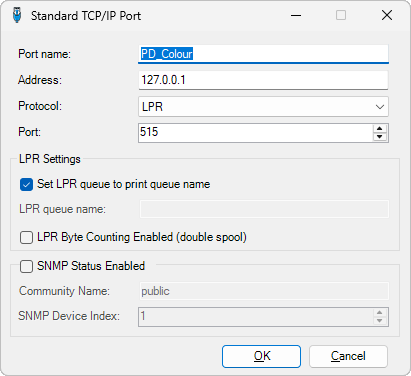
The LPR queue name field is disabled because Set LPR queue to print queue name supplies it automatically. With the installed queue named PD_Colour, the LPR queue name sent to the local PDAgent is PD_Colour.
-
Ensure the deployment’s PD settings match the intended secure-release device. The device name in these screenshots is an example. Confirm Enable LPD is selected on the server PDAgent’s Print services tab.
Self-install on the connector server
-
On the server, right-click the Print Director system tray icon and choose Install print queue.
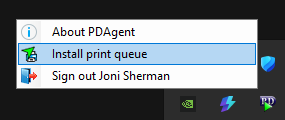
-
Select PD_Colour and click OK.
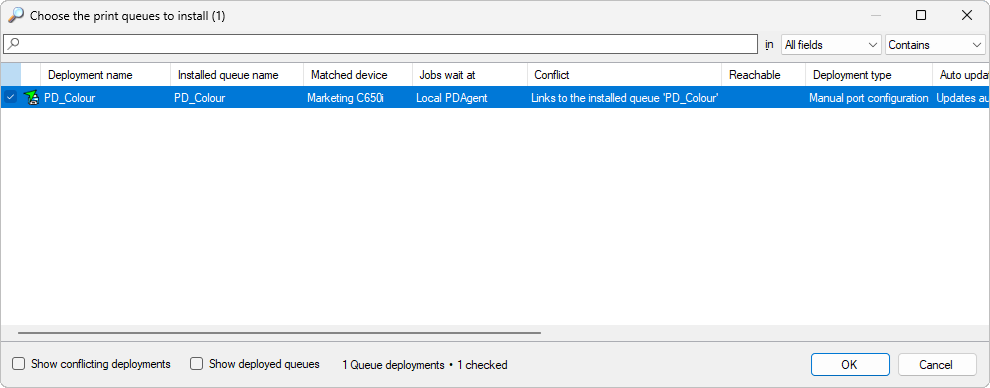
The installed Windows queue sends jobs over LPR to the PDAgent on the same machine. Do not replace this with a paused Windows queue pointing directly at a physical printer: holding the connector’s job in the Windows spooler can surface as an error on the client. The local LPR path also preserves the job identifier used by the Event Log override.
Register the installed queue
In the Universal Print Connector, refresh the printer list if necessary, select PD_Colour and register it with Universal Print.
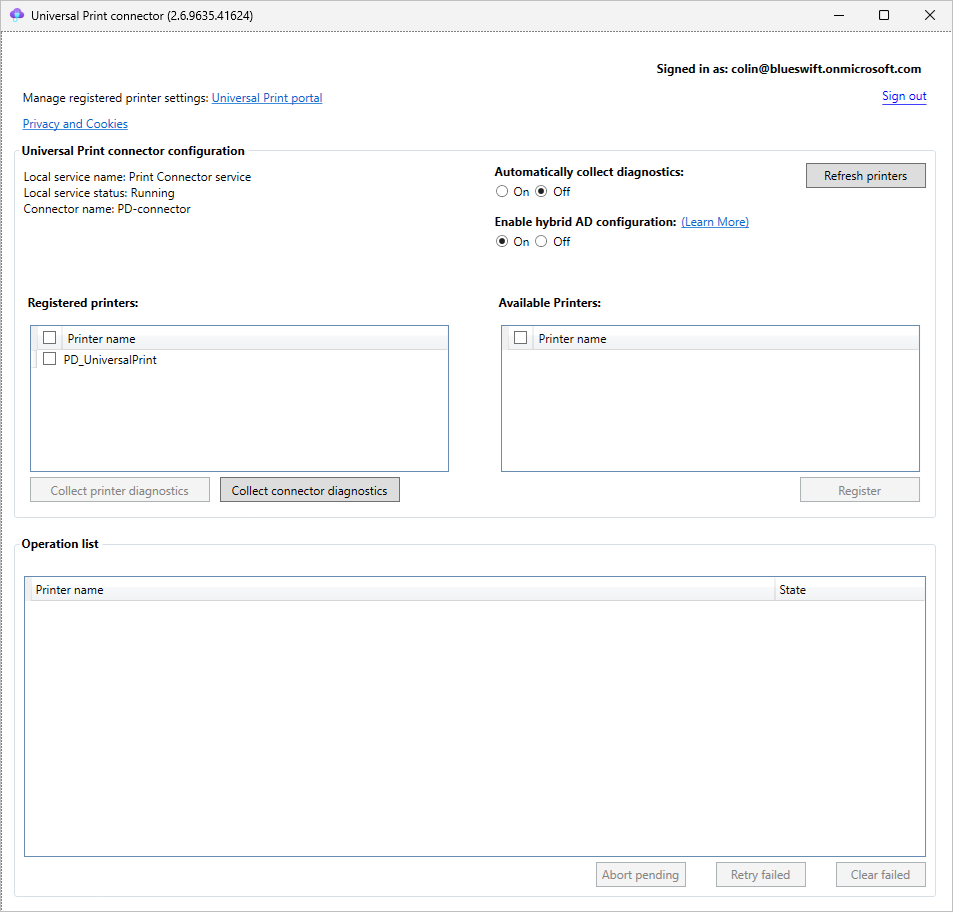
The earlier connector and portal screenshots use PD_UniversalPrint as the example name. For the seeded deployment described here, select PD_Colour instead.
The connector screenshot also shows Enable hybrid AD configuration switched on. Hybrid AD is not required for Print Director’s Event Log override method, which was verified on a workgroup host.
4. Share the printer and assign users
In the Universal Print portal, share the registered printer and assign a test Entra ID group to it. Members of that group will see the share in their print dialog.
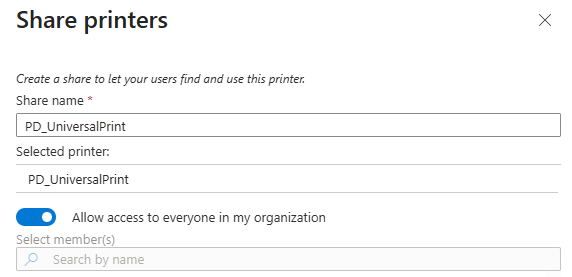
The screenshot shows Allow access to everyone in my organization enabled. For a limited POC, switch this off and select the participating users or groups instead.
5. Let Print Director read the user from the connector log
This is what makes Print Director 2.5.12.1 attribute Universal Print jobs to the right person.
-
Ensure the PDAgent service account can read the connector’s Operational log. LocalSystem can read it; for a custom service account, grant suitable access such as membership of Event Log Readers.
-
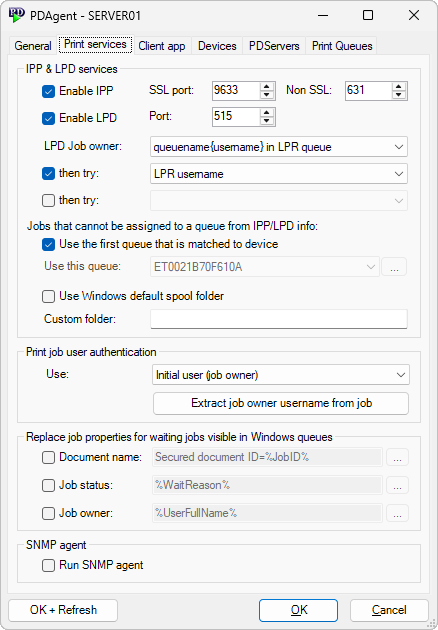
In Resource Manager, open the PDAgent running on the connector host and select the Print services tab.
-
Under Print job user authentication, click Extract job owner username from job.
-
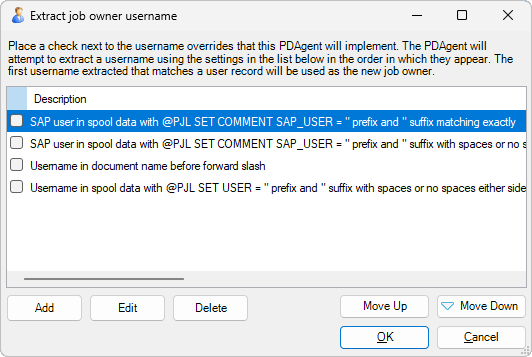
In Extract job owner username, click Add.
-
Enter a description, for example UP Connector Event Log extraction, and configure:
Field Value Extract from Universal Print connector log Only search if the initial job owner matches… Checked Job owner(s) SYSTEM Search type Simple start and end search Username starts after the following text: Start search text for user Username ends before the following text: End search text @ 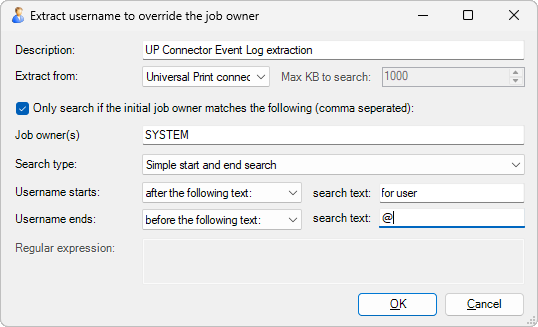
This configuration extracts jsmith from jsmith@contoso.com. Use it when the Print Director login name is jsmith. Leading and trailing whitespace is trimmed, so a trailing space after for user is optional.
If the Print Director login name is the full UPN, use (impersonating as the end search text instead, preceded by a space. That extracts jsmith@contoso.com. The extracted value must match the intended user’s login name.
-
Click OK in the editor. Back in the override list, ensure the new entry is checked for this PDAgent, then click OK. New entries are checked automatically.
-
Close the PDAgent settings with OK + Refresh.
For reference, the connector writes one Event Log entry per job that reads like:
Print job with id 7 and job name Report.pdf for user jsmith@contoso.com
(impersonating: False) sent to spooler with job id 6
Print Director matches that entry to the incoming job by its spooler job id, then extracts the short login name or full UPN according to the override settings.
6. Add the printer on a test device and print
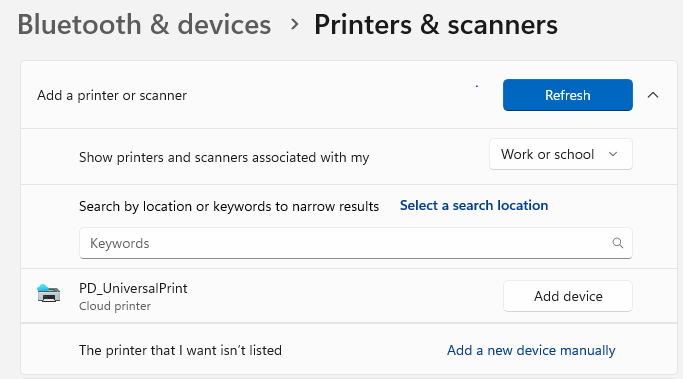
On a test user’s device, add the Universal Print share (Windows: Settings → Bluetooth & devices → Printers & scanners → Add device → search Universal Print), then print a short document to it.
Verify it worked
Work down this checklist. The one that matters most is Print Director attributes the job to the right user. Get that right and the rest of your existing release workflow just works.
| Check | What “pass” looks like | If it fails |
|---|---|---|
| Share visible | The test user can discover and add the Universal Print printer. | Check licensing, the printer share, and the Entra group assignment. |
| Connector receives the job | The connector log shows the job received; the local Windows queue shows activity. | See the connector logs under Troubleshooting below. |
| Correct user | Print Director shows the held job against the right user, read from the connector log. | See “Jobs are not attributed to a user” below. |
| Print Director holds the job | The job appears in Print Director’s held jobs for that user, on the server. | If no user was matched, the job cannot be held for release; fix attribution first. |
| Release works | The user authenticates at the MFP and releases the job normally. | This is your standard release path; if it fails, the issue is unlikely to be Universal Print. |
| Accounting is sane | Page count, colour, duplex and copies match what was printed. | Connector-submitted jobs can differ from driver-submitted jobs; verify pricing on a known document. |
What to expect
- Universal Print may show the job as “completed” while Print Director is still holding it. This is normal. As far as Universal Print is concerned, its job ended the moment the connector handed the document to the local Windows queue. Print Director then holds it for secure release. Tell users the Universal Print portal does not track the release step.
- The connector and Print Director must be on the same machine. Print Director only trusts the connector Event Log for locally-submitted jobs, so the connector cannot run on a different server from the capturing agent.
- Entra-only users are fine. Because Print Director reads the signed-in user from the connector log, users do not need an on-premises Active Directory account; an Entra ID identity is enough.
- The connector host must be online. Universal Print jobs are pulled down to your server, so they cannot be collected while that server is down. This is the same availability assumption as the rest of Print Director.
Troubleshooting
Jobs are not attributed to a user. Check, in order: (1) the PDAgent service account can read the connector log (LocalSystem or suitable Event Log Readers access); (2) the connector and Print Director are on the same machine; (3) the Print Director user’s login name matches the value extracted by the override from the connector log; (4) the connector Event Log override is checked for the capturing PDAgent (step 5).
Where the connector logs are. Event Viewer → Applications and Services Logs → Microsoft → Windows → PrintConnector → Operational. This is the log Print Director reads, and the first place to look when a job does not reach Print Director.
A job printed straight away instead of waiting for release. A direct printer queue was registered with Universal Print instead of the Print Director-controlled queue. Re-do step 3 against the Print Director queue.
Related
- Microsoft: Get access to Universal Print
- Microsoft: Install the Universal Print Connector
- Microsoft: Connector troubleshooting
| Document revision date: 2026/10/23 Software version: 2.5.15.3 |
How to integrate Microsoft Universal Print with Print Director