

How to configure Print Director Workflow Profiles
How to configure Print Director Workflow Profiles
What workflows do
Workflows let users scan documents directly to cloud storage destinations (OneDrive, SharePoint, Google Drive, Dropbox, Box, Google Workspace) and print files from those same destinations – straight from the printer panel. They also include “internal” workflows like scan-to-email, scan-to-home-folder, and instant scan-to-me.
A Workflow Profile is a set of tiles (called boxes) that appear on the printer panel. Different profiles can be assigned to different printers – for example, a sales-floor printer might show cloud destinations prominently, while a finance printer might only show scan-to-email and scan-to-home-folder.
For details on the individual workflows themselves, see Configuring PD Workflows and PD Workflow Types.
Before you start
- The MFP must be a Konica Minolta integrated device that has been initialised with Print Director.
- The MFP must support the General Browser function – most modern Konica Minolta devices do.
- The standard PD Embedded licence includes all the workflows including cloud workflows. To add additional fields to the printer’s panel, or perform post-scanning processing, an advanced workflow licence is required. These are normally used for integrating into third-party document management systems.
The Default profile
Print Director ships with a Default profile that you can either use as-is or customise. It contains:
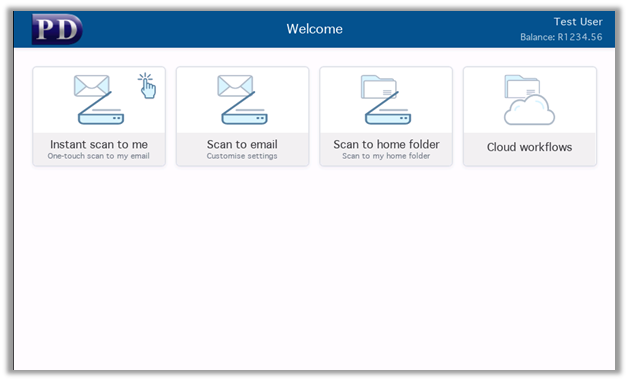
- Instant scan to me – scans straight to the logged-in user’s email.
- Scan to email – opens the scan dialog with the user’s email pre-filled.
- Scan to home folder – scans to the user’s home folder (configured per user).
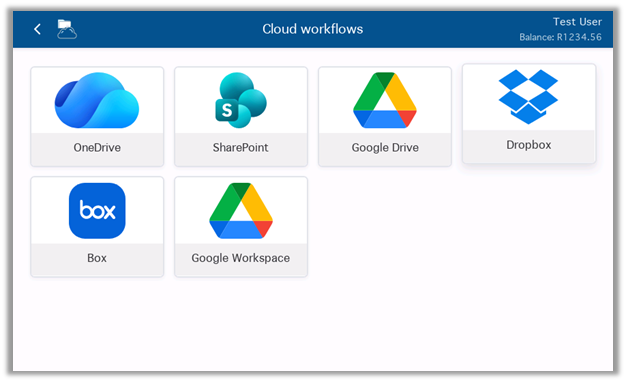
- Cloud workflows folder containing:
- OneDrive
- SharePoint
- Google Drive
- Dropbox
- Box
- Google Workspace
If the Default profile suits you, you only need to assign it to your devices (see Assign a profile to a device below).
Create a new Workflow Profile
- Open Resource Manager.
- Navigate to Print Management > Workflow Management > Workflow Profiles.
- In the right-hand pane, click Add.
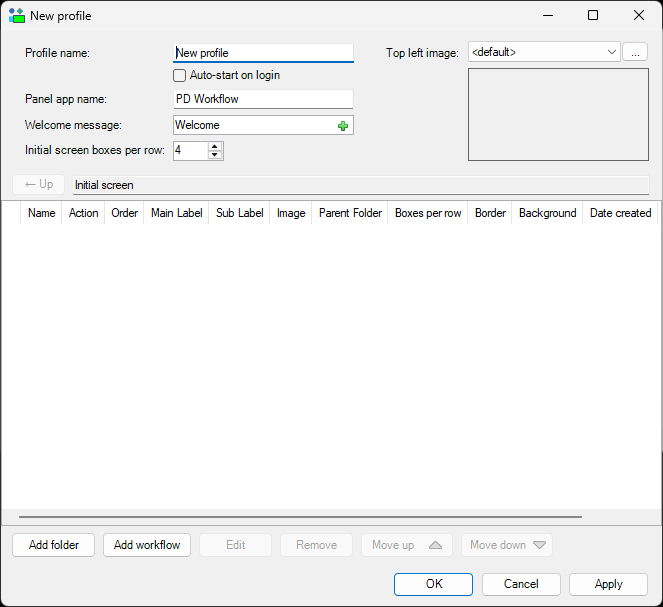
Fill in the profile settings:
- Profile name – a descriptive name used in Resource Manager (e.g. “Sales floor”, “Finance department”). Not shown to end users.
- Panel app name – the label that appears under the workflow app icon on the printer panel.
- Welcome message – a short message shown to the user when they enter the workflow app (e.g. “Welcome”, “Hi – choose a destination”).
- Initial screen boxes per row – how many tiles to show across each row of the panel. Default is 4.
- Top left image – an optional image (e.g. your company logo) shown in the top-left corner of the panel. Click the … browse button to upload.
- Auto-start on login – if ticked, the workflow app opens automatically when a user logs in, rather than requiring them to tap the app icon on the home screen.
Add boxes (tiles) to the profile
Boxes are the tiles that appear on the printer panel. There are two types:
- Workflow box – a tile that runs a specific workflow (e.g. Scan to Email, OneDrive).
- Folder box – a tile that opens a sub-screen containing more boxes. Useful for grouping related workflows.
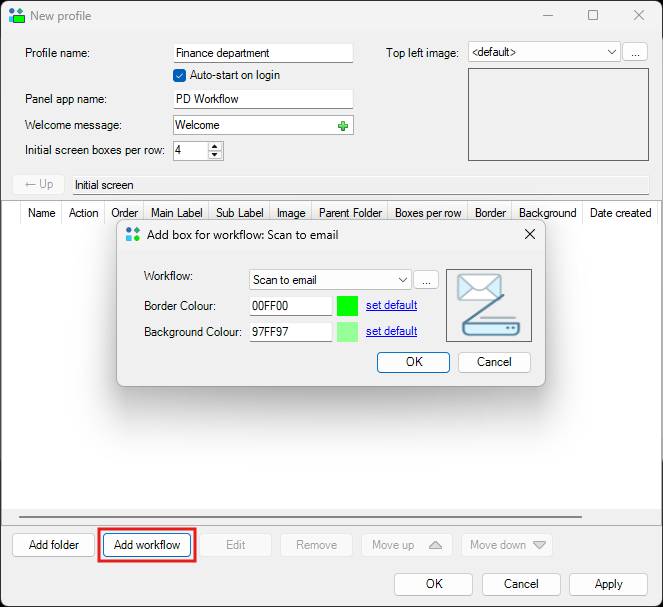
Add a workflow box
- In the Initial screen area of the profile form, click Add workflow.
- Choose the Workflow from the drop-down. Available workflows include:
- Scan to email
- Scan to folder
- OneDrive
- SharePoint
- Google Drive
- Dropbox
- Box
- Google Workspace
- Optionally click on the square to change the Border Colour and Background Colour of the box.
- Click OK.
Add a folder box
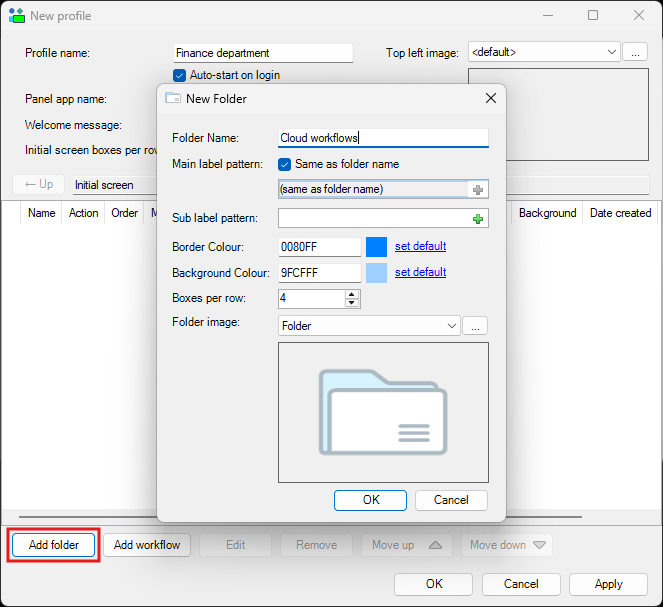
- Click Add folder.
- Enter a Folder Name (e.g. “Cloud workflows”).
- Optionally click on the square to change the Border Colour and Background Colour of the folder box.
- Set the Boxes per row for the folder’s contents (this can be different from the main profile).
- Choose a Folder image (or upload your own image).
- Click OK, then add workflow boxes inside the folder using the steps above.
Re-order, edit, or remove boxes
- To change the order in which the boxes are displayed, select them and use the Move up and Move down buttons.
- To edit a box whose Action is Open Workflow, double-click it, or select it and click Edit. This lets you change the image as well as the border and background colour. You can also change the workflow.
- If you double-click a box whose Action is Open Folder, it opens the folder so you can add boxes within it. To change the box’s own settings (like image and colours), select it and click Edit.
- To remove a box, select it and click the Remove button.
When done, click OK to save the profile.
How cloud destinations are authenticated
Admins don’t need to configure individual users’ cloud accounts. Authentication happens at the printer panel:
-
The user taps a cloud workflow tile (e.g. OneDrive).
-
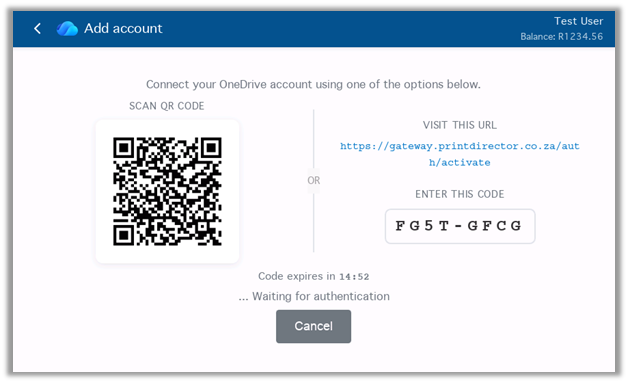
If this is their first time, the panel displays a QR code.
-
The user scans the QR code with their phone and signs in to their cloud account on their own device – using their normal credentials, including MFA.
-
The cloud account token is stored centrally on PDServer (encrypted at rest), linked to the user’s Print Director account.
-
From then on, the user’s cloud account is available at every Print Director-enabled printer on the network – no re-linking required.
Note. Tokens never live on the printer itself. If a user changes printers, their cloud accounts follow them automatically.
Assign a profile to a device
To assign a workflow profile to a specific Konica Minolta device:
- Navigate to Print Management > Shared Devices.
- Double-click the device on the right.
- Click the Controller tab.
- On the General tab (under Controller), in the Workflow profile drop-down, choose the profile to apply.
- If this device requires advanced workflow features, tick Allocate advanced workflow licence.
- Click OK + Refresh All.
- Re-initialise the device, or wait for the next scheduled auto-initialisation if you have Auto-initialise enabled.
See the Konica Minolta Setup Guide for full details on initialising devices.
Modify an existing profile
To change a profile’s settings or its boxes:
- Navigate to Print Management > Workflow Management > Workflow Profiles.
- Double-click the profile to open it.
- Make your changes and click OK.
Profile changes take effect on assigned devices on their next initialisation. If Auto-initialise is enabled on those devices, the re-initialisation happens automatically within a few minutes. Otherwise, re-initialise the affected devices manually.
What the user sees at the panel
When a user logs in at a Print Director-enabled Konica Minolta device with a workflow profile assigned:
-
If Auto-start is enabled, the workflow app opens immediately. Otherwise, the user taps the PD Workflow app icon on the home screen.
-
The workflow tiles are displayed in the configured layout, with the welcome message and (if set) the top-left image visible.
-
Tapping a workflow tile runs that workflow (or opens a folder):
- Scan workflows (Scan to Me, Scan to Email, Scan to Home Folder) execute immediately using the user’s Print Director account details.
- Cloud workflows prompt for authentication via QR code on first use, then execute using the user’s stored cloud token.
-
Tapping a folder tile opens a sub-screen showing the folder’s contents. The user can navigate back to the main screen using the panel’s back button.
| Document revision date: 2026/07/06 Software version: 2.5.12.1 Based on PD Workflow software version 2.5.12.0. © 2026 Blue Swift Software CC. |