

How to store held print jobs on the PDServer
How to store held print jobs on the PDServer
When a user prints to a queue matched to a secure-release device, the job waits until the user releases it at a printer. By default, the spool file stays on the PDAgent that captured it, so that machine must be switched on and reachable at release time.
If the machine is asleep, disconnected or switched off, the job remains listed. When the user tries to release it, the panel reports that the machine holding the job is unreachable. The user can wake or reconnect the workstation and try again; the job does not need to be printed again.
From Print Director 2.5.14, each print queue can instead upload held jobs to the PDServer over TLS. The job then waits centrally: release no longer depends on the capturing workstation or PDAgent being reachable, and on sites with more than one PDServer the servers route released jobs between themselves automatically. This guide explains the new Jobs wait at setting, when to use each option, and the related Lexmark download-print delivery option.
Terminology. A held job’s spool data is always stored on either a PDAgent or a PDServer. It is never stored on the printer; the printer only receives the job when it is released.
How it works
The Jobs wait at setting moves only the job’s spool data. Everything else about capture is unchanged:
- The PDAgent still captures the job (Windows queue, LPR or IPP) and parses it for page counts, colour and cost, so billing, rules and the panel job list behave exactly as before.
- On a queue set to wait at the PDServer, the PDAgent securely uploads the spool file to the server as soon as the job is captured, then removes its local copy. Large jobs upload while they are still spooling, and a job can even be released while its data is still being received; if it is not yet ready to print, the panel asks the user to try again shortly.
- If the user is configured for any popup billing requirements (account/matter/comment), the job still uploads immediately; the billing info is applied to the waiting job when the user responds, or can be entered at the printer panel at release time.
- At release, the PDServer can send the job to the printer itself over the device’s configured connection (raw port, LPR or IPP/IPPS), or the printer downloads it directly on Lexmark devices with download-print enabled (see below). If the PDServer cannot connect directly to the printer, it routes the job through a local PDAgent that can. This can apply to cloud-hosted PDServers without a direct network route to the printers.
On the server, spool files are stored under %ProgramData%\Blue Swift Software\Print Director\PDServer\ServerJobStore. Plan for enough disk space on the PDServer to hold your site’s typical volume of waiting jobs.
When to choose PDServer storage
Set Jobs wait at to PDServer for queues where the capturing machine shouldn’t be relied on to be available at release time:
- Laptops, VPN users and workstations that are not always on. A job printed from a laptop no longer has to wait on that laptop. Once the upload is complete, the user can undock, disconnect or sleep the machine and still release the job at the printer.
- Sites with more than one PDServer. A job held on one PDServer can be released at a printer managed by another; the servers transfer the job between themselves at release time with no extra configuration.
- Email-to-Print queues. Emailed jobs for a server-stored queue are stored directly on the PDServer without routing through a PDAgent at all, so they can be held and released even when the queue’s PDAgent is offline.
- Cloud or data-centre hosted PDServers with Lexmark devices. With download-print enabled, the printer fetches released jobs from the PDServer itself, so no on-premises component is needed in the print path for those devices. However, with download-print enabled, even if the job is stored on the user’s machine the PDServer will still fetch the job at release time so the printer can download it. Storing at the PDServer moves this transfer to capture time, reducing the work needed at release and removing the dependency on the workstation once the upload is complete.
When NOT to choose PDServer storage
- A cloud-hosted PDServer with a slow or unreliable internet connection. Uploading every held job sends its spool data off site. At release, that data must return to the printer, either directly or through a local PDAgent when the PDServer has no direct printer connection. Large jobs and limited bandwidth can increase the wait before printing starts. Keeping jobs on a reachable LAN PDAgent avoids this round trip when that agent delivers directly to the printer.
- Queues already captured by an always-on local print server. If users send their jobs to a print server running a PDAgent, the spool files already have a central, available home. Moving them to a PDServer often adds little benefit. Keeping them on the print server avoids an extra transfer, especially when the PDServer is hosted off site.
- Insufficient PDServer disk capacity. Server storage concentrates waiting spool files on the PDServer. Keep jobs on appropriately sized PDAgents until the PDServer has enough free space for the expected volume, job sizes and retention period.
- A requirement to keep spool data on site. If the PDServer is hosted outside the permitted location, retain jobs on an on-site PDAgent and use a delivery route that also keeps the job data on site.
Lexmark download-print is an exception to the local-delivery examples above. With download-print enabled, a job held on a PDAgent still passes through the releasing PDServer so the printer can download it. PDAgent storage alone therefore does not keep those job bytes off a cloud-hosted PDServer.
Before you begin
- Print Director 2.5.14 or later.
- Administrator access to Resource Manager.
- The queue must be a queue matched to a secure-release device. The Job spool files wait at setting only appears when held jobs actually wait: a queue set to release immediately, or not matched to a secure-release device, has nothing to store and the setting is not available.
Step 1: Set where jobs wait on a print queue
-
In Resource Manager go to Print Management > Print Queue Management and open the queue from Installed Queues or PD Queues.
-
On the queue’s settings, find the Job spool files wait at dropdown. The list offers the two storage locations by name: the queue’s own PDAgent (the default) and the PDServer of the queue’s matched device.
-
Select the PDServer entry and click OK + Refresh.
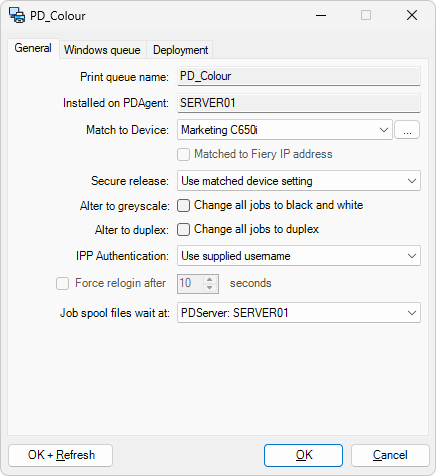
The change applies to jobs captured from then on. Jobs already waiting on the PDAgent stay there and release normally.
To change several queues at once, select them together and edit them as a group; tick the change box to the left of the Job spool files wait at dropdown so the new value applies to every selected queue.
Deployed queues that forward to a PD queue follow the setting of the queue that actually holds the jobs, the receiving PD queue. Set Jobs wait at on the receiving queue.
Step 2: (Optional) Set it on queue deployments
A queue deployment carries the same setting, so queues installed by deployment come out with the right storage location from the start:
-
Go to Print Management > Print Queue Management > Queue Deployments and open the deployment.
-
On the PD settings tab, set Jobs wait at to the PDServer entry and click OK.
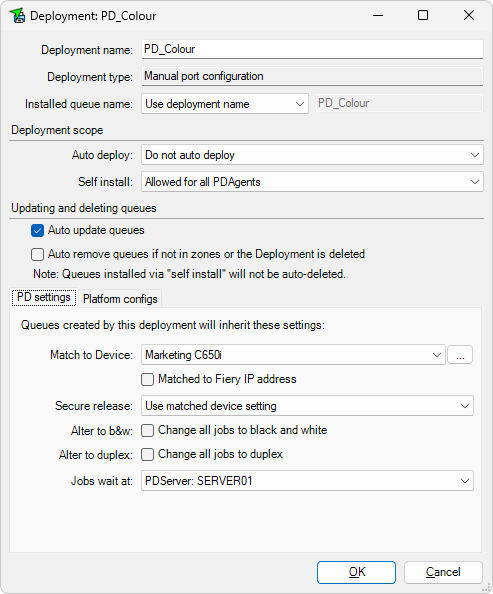
When the deployment installs on a workstation, the created queue will inherit this setting. Deployments that install a forwarding queue to a central PD queue do not use it; as above, the receiving queue’s own setting governs.
Step 3: Release a job and confirm
-
Print a job to the changed queue.
-
In Resource Manager, open the Waiting Jobs list. Check the Job data column to confirm custody: it should show On PDServer:
, as in the screenshot. The Waiting column can be blank; use Job data to identify where the spool data is held. 
-
Release the job at the printer as the user normally would and confirm it prints.
-
As a stronger test, shut down the capturing workstation (or stop its PDAgent) after the job has uploaded and release the job anyway. It prints, which is the point of the feature.
The queue lists also gain a Jobs wait at column (in Installed Queues, PD Queues and Queue Deployments) so you can see the storage location across the fleet at a glance. It shows PDAgent: <name> or PDServer: <name>, or Override release immediately / Not matched to device where the setting does not apply.
Sites with more than one PDServer
Nothing extra needs to be configured for cross-server release. PDServers connect to each other automatically using the web service addresses already configured on their PDServer entries, and a job held on one server releases at a printer managed by another: the release command and the job data are routed between the servers at release time, and the job then prints through the releasing server (or the printer downloads it, on Lexmark with download-print).
You can see the live server-to-server connections in Resource Manager on the PDServer’s Connected PDServers tab, alongside the existing Connected PDAgents tab.
If the central database is temporarily unreachable, jobs continue to release at printers managed by the same PDServer that holds them. Release at a printer managed by a different PDServer resumes when the database connection returns.
Optional: Lexmark download-print
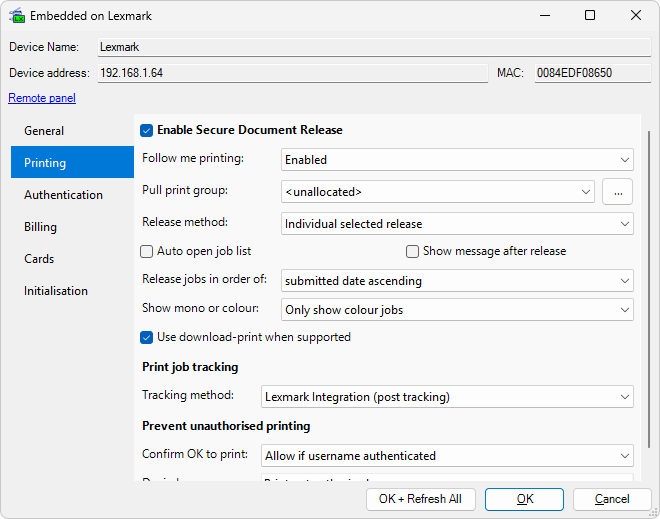
On Lexmark devices running the current Print Director embedded application, released jobs can be delivered by download-print: instead of the server opening a connection to the printer’s print port, the device fetches the job from the PDServer over a one-time secured link and prints it through its own print service. Nothing ever connects inbound to the printer, which suits hardened networks and cloud-hosted PDServers, and it works for jobs wherever they are stored: a job held on a PDAgent or on another PDServer is first brought to the releasing server and then downloaded by the device.
-
In Resource Manager, go to Print Management > Shared Devices, double-click the Lexmark device, click Controller in the list on the left and then Printing. Tick Use download-print when supported and click OK to save.
-
Release a job at the device and confirm it prints.
“When supported” is literal: the option takes effect only while the device is running a current embedded app version with a live connection to the PDServer. When it is not (an older app version, or the device temporarily offline from the server), released jobs automatically fall back to the normal send to the device’s print port, so ticking the option is safe across a mixed fleet.
Download-print relies on the app’s live connection to the PDServer, which the app keeps available while the printer’s panel sleeps. See How to balance Lexmark power saving and cloud availability before turning that behaviour off.
Job expiry and deletion
Server-stored jobs follow exactly the same lifecycle rules as agent-stored jobs:
- The device’s Auto delete unprinted jobs after timeout applies unchanged; a job that waits past the limit is removed from the PDServer just as it would be from the PDAgent.
- Jobs deleted at the printer panel, and jobs removed by the timeout, are recorded in the deleted printout audit as before.
- When a released job has printed, its spool data is removed from the server.
Troubleshooting
The Job spool files wait at row is not visible on the queue. The queue does not hold jobs: it is set to release immediately, or it is not matched to a secure-release device. The setting only applies to queues whose jobs wait for release.
A job shows in the Waiting Jobs list but has not finished arriving. The Waiting column states that the job data is still being received or interpreted. Large jobs upload in the background; the job becomes releasable as soon as enough of it has arrived, and a release attempted too early asks the user to try again shortly.
A release fails. The reason appears against the job in the Waiting Jobs list, including send failures from the PDServer to the printer, exactly as it does for agent-delivered jobs. For IPPS-specific failures see How to deliver print jobs securely with IPPS.
Jobs on an unchanged queue still wait on the PDAgent. That is the default and is unchanged; only queues (or deployments) explicitly set to PDServer upload their jobs.
Related
- How to deliver print jobs securely with IPPS: the per-device delivery protocol and certificate trust settings the PDServer uses when it sends released jobs to the printer.
| Document revision date: 2026/10/23 Software version: 2.5.15.3 |