

Released jobs deleted with “Login Error” on 2026 Konica Minolta models
Released jobs deleted with “Login Error”
Symptom
A user releases several jobs at a Konica Minolta printer and some of them never print. The printer’s job history shows the missing jobs as deleted, with “Error Deletion” and “Login Error”. Small releases print normally; the losses start at the eleventh job of a large release. Print Director records nothing for the missing jobs, because the printer never asked Print Director about them.
Seen so far on bizhub B651i, C551i and B751i units made in 2026, over RAW, LPR and IPP alike.
Cause
Every released job asks the printer to authenticate it, and the printer’s authentication attack detection counts those requests like logins. With “Detection for authentication access attacks” on and “Number of authentication response users” at 10, its lowest value, the printer accepts 10 authentications in its measurement time (10 seconds). A large release authenticates about two jobs a second, so the printer takes the eleventh job onward for an attack: it refuses the authentication itself, without asking Print Director, and deletes the job with “Login Error”.
Units made in 2026 have both attack detections turned on by default. At one site, older units of the same model had both turned off and never lost a job, while the newer units lost jobs in every large release.
Konica Minolta describes the same behaviour with another pull-print system (bulletin PSKM_BT2512042EN).
Resolution
On the printer, in Web Connection logged in as Administrator, open Administrator Settings > Security > Security Details > Authentication attack detection. Under Detection for authentication access attacks, do one of these:
- Turn the detection off. Older units of these models shipped with it off and print every job.
- If your security policy requires the detection, leave it on and set Number of authentication response users to 50. Leave the other values as they are.
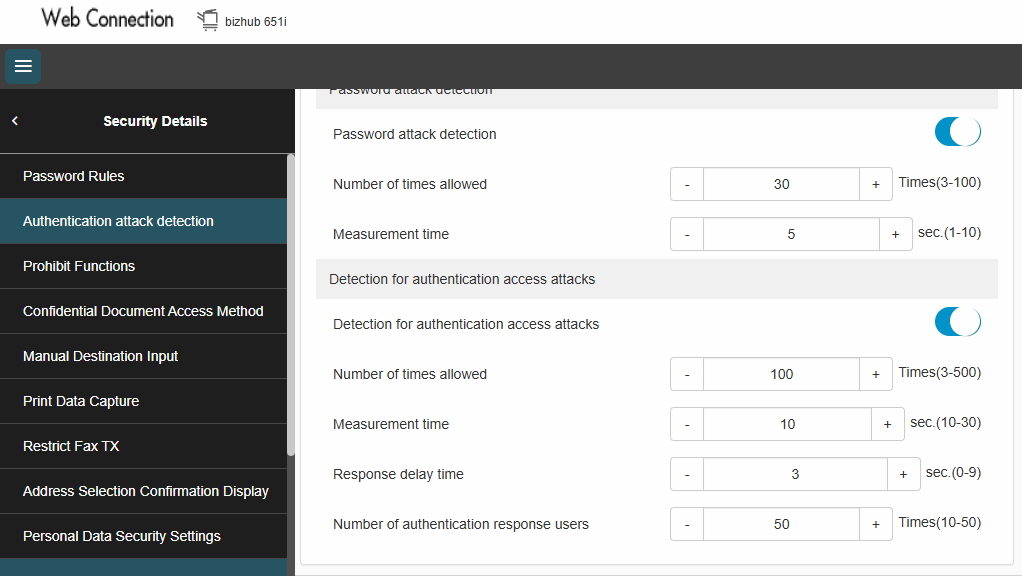
| Setting | As found on the test unit | Set to (detection kept on) |
|---|---|---|
| Detection for authentication access attacks | On | On |
| Number of times allowed | 100 | 100 |
| Measurement time | 10 sec. | 10 sec. |
| Response delay time | 3 sec. | 3 sec. |
| Number of authentication response users | 10 | 50 |
Either change applies at once and needs no Print Director change. Tested on a bizhub 651i releasing jobs as fast as Print Director sends them:
- Detection off: 25 of 25 printed.
- Detection on with 10: 10 of 25 jobs were deleted.
- Raising only “Number of times allowed” to 500: 9 of 25 were deleted, so that value is not the limit.
- With 50: 50 of 50 printed. The printer authenticates at most about two jobs a second, about 20 in 10 seconds, well under 50.
“Password attack detection” plays no part and can stay as it is (30 times in 5 seconds on the test unit); it does not delete released jobs.
If the printer setting cannot be changed: release pacing
Requires Print Director 2.5.15.1 or later on the PDServer and its agents.
The PDServer can hand an affected printer one released job at a time, with a pause between jobs:
- The next job goes to the printer only after the printer has asked Print Director to authenticate the previous one.
DelayAfterGateMsadds a pause after that, which keeps the jobs reaching the printer below its limit. In testing, 1500 after four free jobs (below) lost no job.NoDelayAfterGateJobslets the first few jobs go without the pause, so a small release prints at full speed. The count is the printer’s, whoever releases, and starts again once no job has gone to the printer for 10 seconds.- With
MaxJobsInPrinterBufferset, it also waits until fewer than that many released jobs are in the printer’s buffer, not yet printed. A job leaves the buffer when the printer reports it printed. This does not stop the deletions (the printer counts authentications, not jobs waiting) and is not needed for them.
A job the printer never asks about is known exactly, logged, and either sent again or put back in the user’s waiting list, so nothing is lost silently.
Add the settings to the PDServer’s site settings file (see PDServer settings that survive updates):
C:\ProgramData\Blue Swift Software\Print Director\PDServer\appsettings.local.json
{
  "KmReleasePacing": {
    "DeviceMatch": "51i",
    "WaitForAuthentication": true,
    "NoDelayAfterGateJobs": 4,
    "DelayAfterGateMs": 1500
  }
}
Restart PDServerService after the first edit. At a site with two PDServers, set the same values on both.
Each time the PDServer reads the file again after an edit, its log says so and lists the settings that changed, for example KmReleasePacing:DelayAfterGateMs: 2000 -> 1500. A name under KmReleasePacing that is not one of the settings below (a typo) is logged as a Warning, because the PDServer ignores it.
| Setting | Default | Meaning |
|---|---|---|
DeviceMatch |
empty | A regular expression tested against each printer’s name, model name and host or IP address, ignoring case. A printer that matches is paced; every other printer is released as before. Empty means no printer is paced. "51i" matches the B651i, C551i and B751i. In JSON a backslash is written twice ("\\d"). |
WaitForAuthentication |
false |
true: the next job goes to the printer only after it has asked Print Director to authenticate the previous one. |
AuthenticationTimeoutSeconds |
30 |
How long, after the agent reports a job sent, to wait for the printer to ask about it. |
MaxResendAttempts |
0 |
How often a job the printer never asked about is sent again. 0: it goes straight back to the user’s waiting list. The release carries on with the next job either way. |
MaxJobsInPrinterBuffer |
0 |
The most released jobs the printer may hold in its buffer that it has not printed yet. The next job waits until there is room. 0: no limit. |
MaxJobsStoppedTimeoutSeconds |
300 |
With MaxJobsInPrinterBuffer reached and the printer printing nothing for this long (out of paper, a paper jam, a job waiting at the panel), the release stops. The jobs not yet sent go back to the user’s waiting list and can be released again. |
WaitForSent |
false |
Used only when WaitForAuthentication is false: the next job goes after the agent reports the previous one sent. |
WaitForSentTimeoutSeconds |
60 |
How long to wait for the agent’s report before carrying on. |
DelayAfterGateMs |
0 |
An extra pause, in milliseconds, before each next job. With both waits false it gives a fixed interval between jobs. |
NoDelayAfterGateJobs |
0 |
The first this many jobs to the printer go without DelayAfterGateMs; the later ones wait it. Every job to the printer counts, whichever user released it, and the count starts again once no job has gone to the printer for 10 seconds. 0: every job waits the pause. |
What users notice, with the example values: a release of up to four jobs goes to the printer at full speed. In a larger release the rest follow about one every two seconds, so 26 one-page jobs take about 45 seconds. The panel is free again straight away; the jobs carry on in the background.
Each job the printer never asked about is logged in the PDServer log as a Warning starting “KM release pacing:”, naming the job and the printer. A release stopped because the printer printed nothing is logged the same way, and the user’s panel lists the jobs that were not sent.
Print Director never prints a job twice because of this: if a job the printer was slow to ask about turns up after it was sent again, or after it went back to the user’s list, the printer is told not to print that copy.
Limits
- Only jobs released through a Print Director panel are paced. The authentication wait and
MaxJobsInPrinterBufferneed the printer’s Konica Minolta settings in Resource Manager to have “Override driver authentication by inserting into datastream” ticked and job tracking set to “Enhanced server counter notification”; other jobs to a matched printer are paced on the agent’s Sent report instead. MaxJobsInPrinterBuffercounts only the jobs this PDServer released to the printer, and learns that a job printed from the printer’s report to the same PDServer.- The printer reports a job printed only when the whole job has come out. A single job that takes longer than
MaxJobsStoppedTimeoutSecondsto print (about 375 pages at 75 pages a minute with the default of 300 seconds) looks like a stopped printer, and the rest of that release goes back to the user’s list. Raise the setting where users print very long jobs. - The agent holding the job must be connected to the printer’s PDServer to be told to send a job again or put it back. If it is not, the job is treated as sent, as before.
- On printers that fail over to a secondary PDServer, keep
MaxResendAttemptsat0.
| Document revision date: 2026/10/23 Software version: 2.5.15.3 |
Released jobs deleted with “Login Error” on 2026 Konica Minolta models