

Lexmark print permissions for delivered jobs: RAW/LPR uses the Public user
Lexmark print permissions for delivered jobs: RAW/LPR uses the Public user
Print Director’s group permissions on Lexmark decide what a user may do once they sign in at the panel. When someone logs in, Print Director tells the printer which functions that user is allowed (colour print, colour copy, and so on), and those permissions replace the printer’s Public settings for the duration of their session.
A released print job is different. When Print Director delivers a held job to the printer, by default it streams the job over the raw print port (TCP 9100) or LPR (TCP 515). That delivery carries no login, so the printer treats it as an anonymous job and evaluates it against the Public user’s Function Access. Group permissions never enter into it, because there is no signed-in session on that connection to apply them to.
This matters in one specific situation:
If you have removed print permissions from the Public user, delivered jobs will not print. The printer accepts the job, then cancels it because Public is not allowed to print. On the printer’s debug log this shows up as a print accounting alert immediately followed by the job being cancelled.
Why Print Director cannot work around this in the job itself
A reasonable question is: can Print Director put something in the job data that makes the printer authenticate it, the way it does when a user signs in? On Konica Minolta printers it can, because those devices read authentication fields out of the job stream. Lexmark printers do not. A Lexmark printer only runs its authentication (and therefore only applies Print Director’s per-user permissions) for an interactive session at the panel or web interface, or for a print protocol that authenticates, such as IPP with a username and password. A raw or LPR job cannot trigger it. Print Director does tag delivered Lexmark jobs with the owner’s user name for reporting, but that is a label for accounting, not a login, and it does not change which permissions the printer applies.
So this is a device configuration matter, and there are two supported ways to handle it.
Option 1 (recommended): deliver over authenticated IPP
Switch the device to IPPS (IPP over TLS) delivery and give Print Director a printer account to authenticate with. The job then arrives as that account’s user, so the printer applies that account’s Function Access instead of Public’s. Grant the account the print permissions it needs and you can keep Public locked down.
This is the better option where a security policy requires the Public user to have no print rights, or requires the plaintext print ports closed. Full instructions, including creating the account and the Lexmark-specific Browser login method requirement, are in How to set up IPPS on Lexmark printers. Assign the account to a group with Internet Printing Protocol (IPP), B/W Print and Color Print enabled.
Option 2: leave the two print permissions on Public
If you deliver over the raw port or LPR (the default) and do not want to change the delivery protocol, then the Public user must keep at least these two Function Access permissions so it can receive delivered jobs:
- Function Access – B/W Print
- Function Access – Color Print
To check them on a Lexmark printer:
-
In the printer’s Embedded Web Server go to Settings > Security > Login Methods.
-
Under Public, open Manage Permissions (or Manage Group/Permissions), and expand Function Access.
-
Make sure B/W Print and Color Print are ticked, then save.
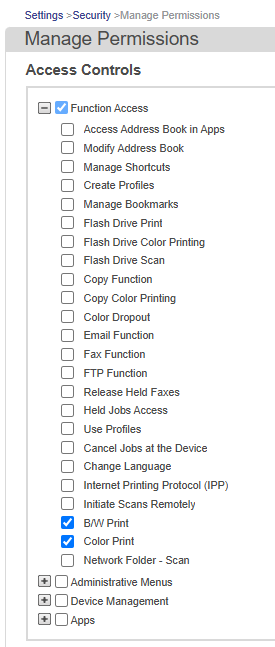
Leaving these two on Public does not weaken Print Director’s per-user control of the panel. Everything a user does while signed in (colour, copy, scan, the built-in apps) is still governed by that user’s group permissions and by Print Director’s rules. These two permissions only govern whether the device will accept a job that Print Director hands it over the print port.
Restricting colour on Public is fine. If your goal is to stop unauthenticated walk-up colour, you control that per user through Print Director’s rules and through the colour group permission, which apply once the user signs in. The Color Print Function Access on Public is about accepting the delivered job stream, not about who is allowed to print in colour. Leave it ticked so jobs are accepted; enforce the colour policy per user.
Exception: devices set to Download print
Print Director 2.5.14 and later offers Use download-print when supported under the Lexmark device’s Printing settings in Resource Manager. When it is on, the release works the other way around: instead of Print Director streaming the job to the printer, the printer fetches the job itself and prints it through its own embedded app in the signed-in user’s context. Because that path runs under the logged-in user, the user’s Print Director permissions apply and Public is not involved. Neither of the options above is needed for a device with Download print enabled.
Check Use download-print when supported in the device settings. If delivery falls back to the configured print port, the permissions for that protocol still apply; configure Option 1 or Option 2 for that fallback.
Verify it worked
- Set the Public user’s print permissions to the state you intend (removed, if using Option 1 with authenticated IPP; or with B/W Print and Color Print ticked, if using Option 2).
- Release a held job to the device.
- Confirm it prints. If it is accepted and then cancelled at the device, the delivery is still arriving as Public without print permission: either the IPP account is not authenticating (see the IPPS guide’s troubleshooting), or the two Function Access permissions are not present on Public.
Related
- How to deliver print jobs securely with IPPS: switch a device to authenticated IPPS delivery (Option 1), including creating the printer account and setting the Browser login method.
- How to harden the security of Lexmark printers: the admin-account and Public-group lockdown this permission question usually arises from, plus SNMP v3 and IPPS delivery.
- Lexmark Setup Guide: initial configuration of the Lexmark embedded app, including the Printing settings where Use download-print when supported is set.
| Document revision date: 2026/09/28 Software version: 2.5.14.17 |